
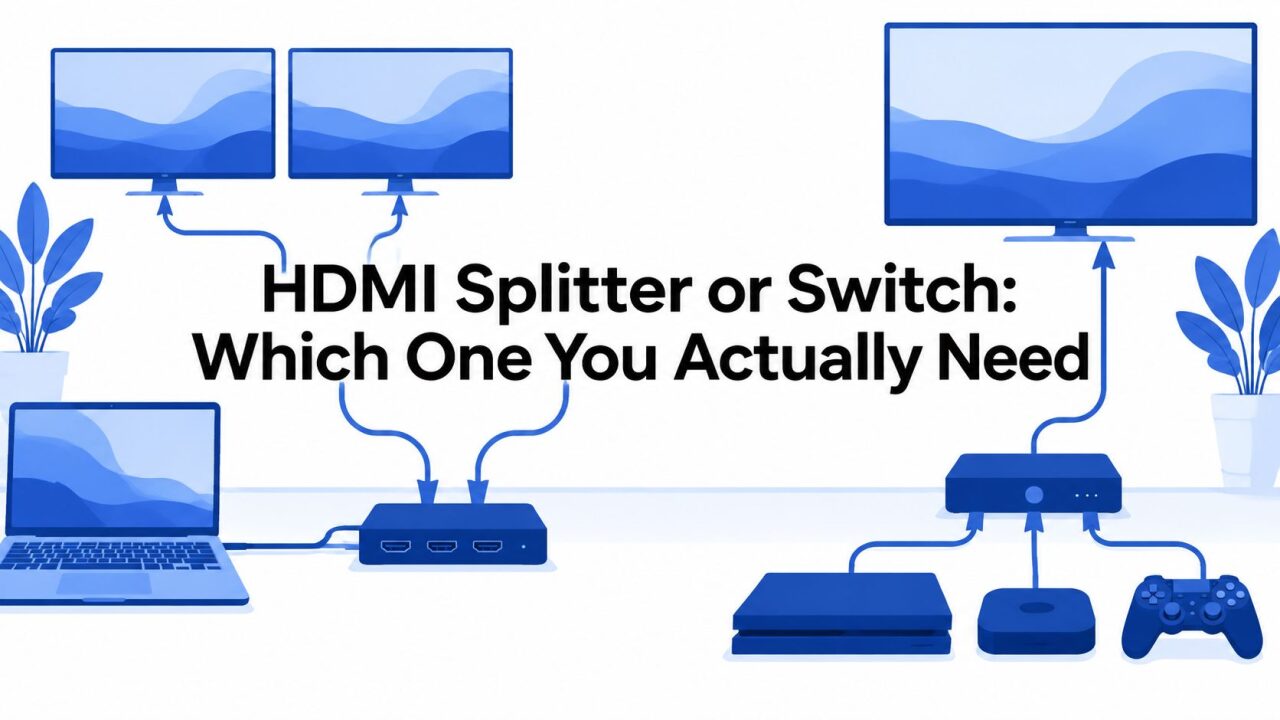
You can get halfway through a weekend setup and still end up staring at a black screen. The console powers on, the capture card is connected, the TV works on its own, and yet the moment you insert a box between them, everything starts failing for reasons that don't look related at all. That's the trap with an HDMI splitter or switch decision, the hardware label sounds simple, but the signal path underneath is where most setups break.
| Device type | What it does | Best for | Common failure mode |
| HDMI splitter | One source to multiple displays | Streaming, mirrored screens, capture passthrough | EDID, HDCP, refresh-rate mismatch |
| HDMI switch | Multiple sources to one display | Consoles, PCs, set-top boxes on one TV | Wrong input selection, handshake dropouts |
| Matrix / receiver | Multiple sources to multiple displays | Complex home theater, independent routing | More setup complexity, higher cost |
The confusing part is that many boxes look interchangeable on the shelf. They're not. A splitter duplicates one source to several outputs, while a switch chooses one of several sources and sends it to a single display. Pick the wrong one, and you don't just fail to solve the problem. You can trigger resolution downgrades, flashing screens, or a setup that only works until you power-cycle it.
A lot of support calls start the same way. Someone blames the GPU, the TV, or the cable, but the core issue is that the box in the middle is doing a job it was never meant to do. If you want a useful related example of how a display chain can look fine on paper and still fail at the dock or adapter stage, the Perth guide for Switch dock problems is a good reminder that simple-looking video paths can still be picky about power and negotiation.
Why the Wrong Choice Breaks Your Setup
The most common failure I see is a streamer with a PS5, a capture card, and a monitor who buys a cheap box labeled “HDMI splitter switch” and assumes it'll do both jobs. They plug the console in, send one output to the TV and one to the card, then hit a wall of black screens, HDCP errors, or a capture window that only shows up at the wrong refresh rate. The box isn't “bad” in the abstract, it's just solving the wrong routing problem.
Splitter and switch aren't synonyms
A splitter takes one input and duplicates it to multiple outputs. A switch takes multiple inputs and routes them to one output. That's the whole decision in one sentence, but the failure happens because buyers often focus on the port count instead of the signal direction.
Practical rule: if your goal is “one device on two screens,” you need a splitter. If your goal is “several devices on one screen,” you need a switch.
The wrong box creates problems that feel random because HDMI doesn't fail like analog video did. It negotiates, authenticates, and re-negotiates each time you change inputs, wake a console, or power a display. If one device in the chain dislikes the result, the whole path can collapse. That's why people replace cables first and only later discover the actual issue was the box type.
For a game console and capture card chain, the issue gets even uglier because the source, display, and recorder all have to agree at the same time. A splitter that works with a laptop presentation can still fail with a console output if the capture device or TV forces a different handshake. That's also why “it worked yesterday” is such a common complaint, the setup isn't stable enough to survive small changes in power state, order of boot, or hot-plug timing.

The practical mistake is buying for the port count and ignoring the routing logic. Once you understand that distinction, the rest of the troubleshooting gets much easier, because you stop asking what's “wrong” with the signal and start asking whether the device in the middle is even the right category.
How HDMI Splitters and Switches Actually Work
The internal behavior matters more than the label on the box. A splitter has to present the source with something that looks like one display, then replicate that signal downstream. A switch does almost the opposite, it hides the unused inputs and passes one selected source through as cleanly as it can.
What the splitter is really doing
A proper splitter has to read the EDID from the connected sinks and decide what the source should output. In practice, that means it often negotiates the lowest common denominator across all attached displays. If one screen only wants a lower mode, the whole chain may get forced down to it. That's why a splitter can work perfectly in one room and flatten your output in another.
This is also where “bidirectional” marketing causes trouble. Some cheap products are sold as bidirectional splitters or switches, but true splitting needs active signal management. A passive box can rewire paths, but it can't intelligently clone the stream the way a real splitter does. Under load, especially during wake-up or source changes, weak units can miss the timing window and leave you with a blank output until you reboot the whole chain.
A device that needs no power on the shelf can still become the most fragile part of the system once hot-plugging starts.
What the switch is really doing
A switch behaves like a multiplexer. It selects one input and sends that full signal to one output, while keeping the source-side handshake simple. That's why switches are usually better for mixed-device TV setups, but only if the internal bandwidth is high enough for your target mode. A low-grade switch can still look fine at 1080p and then fall apart the moment you ask it to carry a modern gaming signal.
Real hardware specs show the difference clearly. One independent datasheet lists a bi-directional 2-port HDMI splitter or switch at up to 10.2 Gbps and 225 MHz, with support for 3840×2160 video under HDMI 1.3b or 1.4-class signaling, which is fine for 4K@30Hz but not the same thing as true 4K60 operation (technical splitter and switch datasheet). A higher-end 4-port switch is specified at 600 MHz and 6 Gbps baud rate with 3840×2160@60Hz support, which is why the generation of the chipset matters more than the marketing name.

The shortest way to think about it is this. A splitter duplicates a negotiated output. A switch selects a source path. If the box can't preserve the mode you need, the math won't be saved by the product name printed on the front.
Bandwidth and Cable Limits That Matter
The box is only part of the story. The cable run often decides whether a setup stays stable or turns into a headache. I've seen plenty of “bad splitter” complaints that were really signal integrity problems, with the box blamed first because it was the easiest thing to point at.
Bandwidth sets the ceiling
HDMI's spec history explains why older hardware gets exposed so quickly. The first HDMI specification shipped with 4.95 Gbps of bandwidth and targeted 1080p at 60 fps. HDMI 1.3 moved to 10.2 Gbps and brought 4K at 30 fps into reach. HDMI 2.0 raised the ceiling to 18 Gbps-class capability, and HDMI 2.1 pushed it to 48 Gbps with support for 4K at 120 Hz and 8K (HDMI history and spec milestones, HDMI specifications overview).
That matters because marketing labels often hide the actual limit. A box may be sold as “4K” or even “8K compatible,” but if the chipset is still built around an older bandwidth budget, it will not behave like a true HDMI 2.1 path. In gaming and capture setups, that shows up fast when you ask for high refresh rates, VRR, or clean passthrough.
| HDMI Standard | Max Bandwidth | Max Resolution/Refresh | Common Chipset Support | Cable Type Required |
| HDMI 1.3 class | 10.2 Gbps | 4K at 30 Hz | Older splitter and switch designs | Standard high-quality HDMI, short runs |
| HDMI 2.0 class | 18 Gbps | 4K at 60 Hz | Many mainstream AV boxes | Certified High Speed or better |
| HDMI 2.1 class | 48 Gbps | 4K at 120 Hz, 8K | Higher-end gaming and AV gear | Ultra High Speed HDMI, often active or fiber for longer runs |
Cable length changes the outcome
Cable distance makes the margin vanish quickly. One 4K bi-directional 2-port HDMI splitter or switch specification limits source-to-device and device-to-display runs to up to 5 m (16 ft) and caps the maximum single-link mode at 3840×2160@30 Hz and 4096×2160@24 Hz, while also requiring 5 V power (Manhattan splitter and switch specification). A separate guide to using an 8K TV as a monitor also shows how quickly display-side limits matter once you push beyond short, clean runs (8K TV as a monitor guide).
That is why passive cables get blamed even when they are not the root cause. Every connector adds loss, and every extra hop trims the margin. If the chain has to carry full high-bandwidth video over a longer distance, shorter certified cables or fiber-class HDMI are the safer choice. A setup that works on a desk can fail once it moves into a living room or capture rig.
HDCP and EDID Handshake Failures Explained
Most HDMI failures are handshake failures. The hardware can be fine, the cables can test clean, and the screen still stays black because the devices never agree on what should pass through.
Why HDCP trips the chain
HDCP controls whether protected content is allowed through the path. If the source, splitter, switch, and display do not agree on the same version, the result can be a black screen, a blank app, or partial output. In a cloned setup, one incompatible display can break the whole chain if the device in the middle handles authentication poorly.
An Amazon FAQ for a splitter-style product explicitly warns that both source and display must support the same HDCP version, which is exactly the detail many buyers miss until Netflix, a console dashboard, or a streaming app refuses to show video (HDCP compatibility FAQ). Capture chains are even less forgiving. A console can look fine on a TV and still fail to record if the recorder receives protected content the chain will not negotiate.
Why EDID decides the final mode
EDID tells the source what the display can handle. If the splitter or switch cannot emulate or manage EDID properly, the source usually falls back to the safest shared mode. That can pull the whole setup down to a lower resolution, a lower refresh rate, or a format that disables the feature you wanted, such as VRR.
If one device in the chain can only advertise a weaker mode, the whole path gets dragged down to it.
That is why passive passthrough is such a gamble in mixed setups. Good EDID management can keep a TV and capture card happy at the same time. Weak management can cause flashing on wake, brief signal loss after input changes, or a setup that works until the display order changes. For a broader example of a mismatch that stops working after a handshake-related change, this adapter failure explanation shows how a device can fail once the negotiation no longer matches what the chain expects.
The capture-card symptom set is usually the same. The game shows on the TV, the recorder loses sync, the app sees no signal, or the console becomes unrecordable unless HDCP is disabled where the platform allows it. In practice, the box that should make routing easier is often the point where authentication, EDID, and protected content collide.
Recommended Setups for Real Scenarios
The right answer changes with the layout, but the pattern stays consistent. Start with the direction of the signal, then ask whether the setup needs cloning, selection, or independent routing. After that, check whether the chain has to preserve 4K120, VRR, or capture compatibility without forcing the source into a lower mode.
Dual monitors from one laptop
A 1x2 splitter with EDID management works when both screens should mirror the same image, especially for a presentation or a temporary desk layout. For productivity, a USB-C MST hub is usually the cleaner alternative because it's designed for multi-display output rather than signal cloning. If one display is older, the splitter can force both outputs to that older mode.
Console gaming with capture passthrough
Use an HDCP-compliant 1x2 splitter feeding both the TV and a capture card. The splitter needs to preserve the game output without breaking the recorder handshake, and the console's HDCP settings may need to be adjusted where the platform allows it. If the capture device is picky, don't assume the TV path proves anything. The recorder is usually the stricter endpoint.
Multiple sources into one TV
A 3x1 or 5x1 auto-switch is the normal fit for a Switch, PS5, and streaming box going into one screen. CEC support can make the remote behavior less annoying, but only if the switch handles standby and wake transitions cleanly. For modern gaming, make sure the unit really supports 4K120 passthrough if that matters in the chain, not just “4K” on the box.
Shared AVR output for projector and TV
People often need a splitter more than they think. If the projector can only negotiate a lower mode, it can drag down the TV unless the splitter provides independent EDID per output. That feature prevents one weak display from forcing the entire output chain into its limits. For home theater use, that's more valuable than a flashy port count.
Streaming PC with dual capture inputs
Use a powered splitter instead of daisy-chaining. Daisy-chains add another place for sync to fail, and capture devices are unforgiving when the source jitters during switching. Keep the runs short, use the right cable grade, and don't assume a passive box will stay stable once both capture paths are live.
| Scenario | Recommended Device | Key Spec Requirement | Common Pitfall |
| Dual monitors from one laptop | 1x2 splitter with EDID management or USB-C MST hub | Matching refresh and resolution behavior | Accidentally mirroring when you wanted extended desktop |
| Console gaming with capture passthrough | HDCP-compliant 1x2 splitter | Stable authentication with console and recorder | Black screen when HDCP mismatches the recorder |
| Multiple sources into one TV | 3x1 or 5x1 auto-switch | Clean input selection, CEC if needed | Buying a low-bandwidth switch that breaks gaming modes |
| Projector and TV on one AVR output | Splitter with independent EDID per output | Each display needs its own negotiation path | Projector forcing the TV down to a weaker mode |
| Streaming PC with dual capture inputs | Powered splitter | Reliable signal cloning under load | Daisy-chaining and blaming the capture card |
For a wider display-build reference, the portable mini monitor project discussion is useful because it shows how quickly display constraints become practical constraints.
When to Skip Both and Use a Matrix or Receiver
Once the setup needs multiple sources routed to multiple displays with independent control, a standalone splitter or switch stops being the right tool. That's the point where an HDMI matrix earns its keep, because it can route any input to any output instead of forcing you to work around the box's limits.
An AV receiver can also solve a lot of home theater pain. Dual HDMI outputs and zone control often remove the need for an external splitter entirely, especially when the receiver already handles audio extraction, source switching, and format negotiation. If the cable run is long, HDBaseT or HDMI-over-IP becomes the smarter move, because passive splitters and switches lose too much margin as distance grows.
If the room needs flexibility, not just duplication or selection, stop trying to force a simple box to behave like a routing system.
A quick checklist keeps the decision honest.
- Count sources and displays. One-to-many points toward a splitter, many-to-one points toward a switch, and many-to-many points toward a matrix.
- Check independent resolution needs. If one screen is weaker than the other, a simple clone box may drag everything down.
- Verify HDCP requirements. Protected content and capture chains can fail even when the picture looks fine on paper.
- Measure cable distance. Long runs can turn a cheap success into a nightly troubleshooting session.
- Decide whether audio matters separately. If it does, a receiver or matrix often fits better than a basic box.
The cost conversation gets misunderstood a lot. A $200 matrix can outperform a pile of cheaper splitters and switches if it removes handshake problems, simplifies cabling, and cuts down on rework. The right answer isn't always the cheapest device. It's the one that leaves you with a stable chain after the third reboot, not just a good-looking spec sheet.

NeoTeo covers the kind of practical tech problems that turn a simple AV plan into a troubleshooting session, from gaming gear and display setups to hardware guides that save time on the bench. If this setup is still giving you grief, visit NeoTeo for more hands-on guides, hardware explainers, and fixes that focus on what works in the world.


