

Deleting pagefile.sys won't automatically make Windows faster, and it isn't a guaranteed SSD-life upgrade. The file is a hidden system component that extends committed memory, supports Windows crash dumps, and gives applications more room to reserve memory than physical RAM alone can provide. Removing it is a virtual-memory configuration change, not ordinary file cleanup.
The safe procedure is straightforward, but the decision deserves more care than most tutorials give it. Before learning how to delete pagefile.sys, decide whether you're solving a storage shortage, trying to change performance behavior, or reacting to concerns about SSD wear. Those goals lead to different configurations, and full deletion can create diagnostic and stability problems that won't appear until the next memory-heavy workload or blue screen.
Why Deleting Pagefile Sys Is Not a Simple Cleanup
Windows locks pagefile.sys while it's using the file, so File Explorer won't treat it like a disposable temporary file. Microsoft documents the page file as an optional, hidden system file that extends committed memory and can support crash dumps. Its location and size are controlled through System Properties, not by dragging the file to the Recycle Bin. Microsoft's page-file overview explains that Windows calculates the commit limit from physical RAM plus the total size of paging files. If no page file exists, the limit falls back to usable RAM.
That distinction matters on modern systems with abundant memory. A computer can have enough RAM for ordinary browsing and gaming while still running an application that reserves more committed memory than the machine can provide without a page file. Windows may also need paging-file capacity for diagnostic data after a system failure. Removing the file can therefore change whether a workload launches, whether Windows can commit additional memory, and what evidence remains after a crash.
Practical rule: Treat pagefile.sys as part of Windows memory policy, not as clutter.
The popular “delete it for better performance” advice usually confuses less disk activity with faster computing. If a workload never approaches memory pressure, disabling paging may produce no noticeable benefit. If the workload does approach the commit limit, removing the file removes the safety margin instead of making the underlying memory demand disappear. The result can be an application refusal, an out-of-memory condition, or a system crash.
Storage is a separate question. If you need to recover space, first identify what is consuming the drive. A file-search utility such as Everything for Windows can help locate large files without altering protected system settings. If a blue screen is the reason you're investigating the page file, start with a troubleshooting resource such as this guide to fixing blue screen errors in Indiana, because deleting the file can make later diagnosis harder.
What Pagefile Sys Actually Does in Windows
Physical RAM holds the working data that processors need quickly. Windows also tracks committed memory, which is memory it has promised to processes and services. That promise needs backing from either physical RAM or a paging file. Microsoft states that the system commit limit equals usable RAM plus the combined size of paging files. Without any page file, Windows has only usable RAM available for that commitment. Microsoft's virtual-memory documentation describes pagefile.sys as one or more files placed in the root of a disk partition, with size and location configured through system settings.
This doesn't mean Windows constantly writes every active memory block to disk. The page file can remain mostly quiet during a light workload. When memory pressure rises, Windows can move less-active pages out of RAM, preserving physical memory for data that applications are actively using. Some programs can also reserve commit space in advance, even when their current activity doesn't appear to fill RAM. That's why a machine may show available memory while still approaching its commit limit.
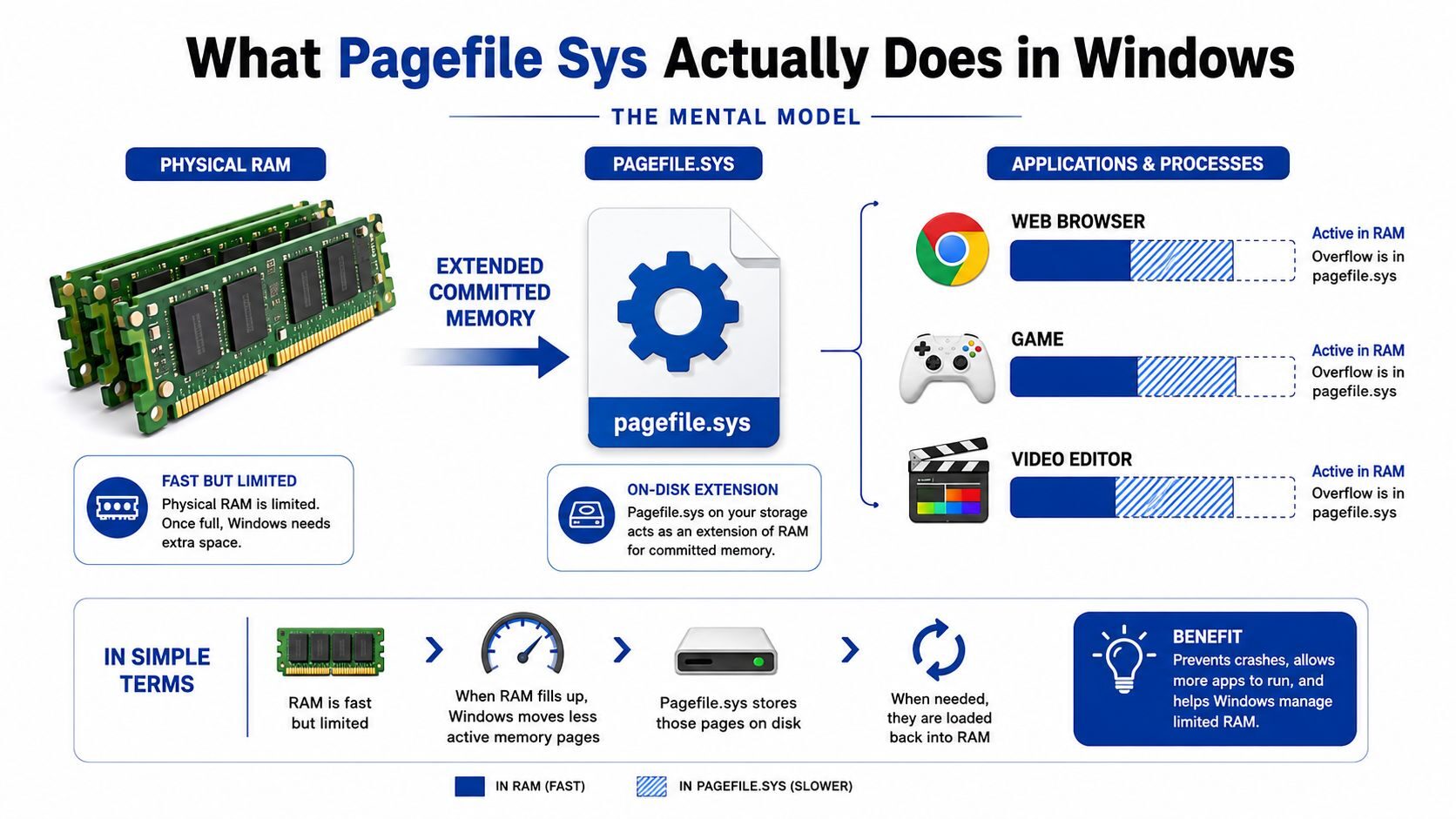
Windows' memory design is also rooted in a long-standing 4 KB page model, which helped make paging a central part of memory management as applications exceeded available physical memory. The page file isn't a cache that improves loading times. It is one of the places Windows can use to honor memory commitments and preserve operating-system flexibility under pressure.
When the file is active
You're most likely to notice paging during a combination of demanding applications, large projects, extensive multitasking, or a workload that commits more memory than RAM can comfortably hold. A browser, game, video editor, virtual machine, or professional design application may behave differently depending on its peak memory requirement. The page file may also be involved in writing crash information after a fatal system error.
Why RAM capacity doesn't settle the question
More RAM reduces the likelihood of paging, but it doesn't make the page file automatically redundant. Microsoft's documented sizing guidance varies by scenario. One older 64-bit recommendation uses RAM divided by eight, with a maximum of 32 GB in one case, while another scenario uses three times RAM or 4 GB, whichever is larger. Microsoft's SharePoint guidance recommends a paging file equal to or greater than physical memory, with automatic management or a setting of 150% of RAM as an option. These differing recommendations show why workload and dump requirements matter more than a universal rule. Microsoft's page-file guidance should be checked before applying a fixed value.
How to Disable and Remove the Page File Safely
The supported removal process changes the setting first and removes the file after Windows restarts. Don't try to delete C:\pagefile.sys manually from File Explorer, PowerShell, or Command Prompt while Windows is running. The operating system may have the file open, and manual deletion doesn't address the virtual-memory policy that caused Windows to create it.
Search Windows for View advanced system settings, then open the matching Control Panel result. In the Performance area, select Settings, open the Advanced tab, and choose Change under Virtual memory. This is the control panel where Windows exposes paging-file configuration.
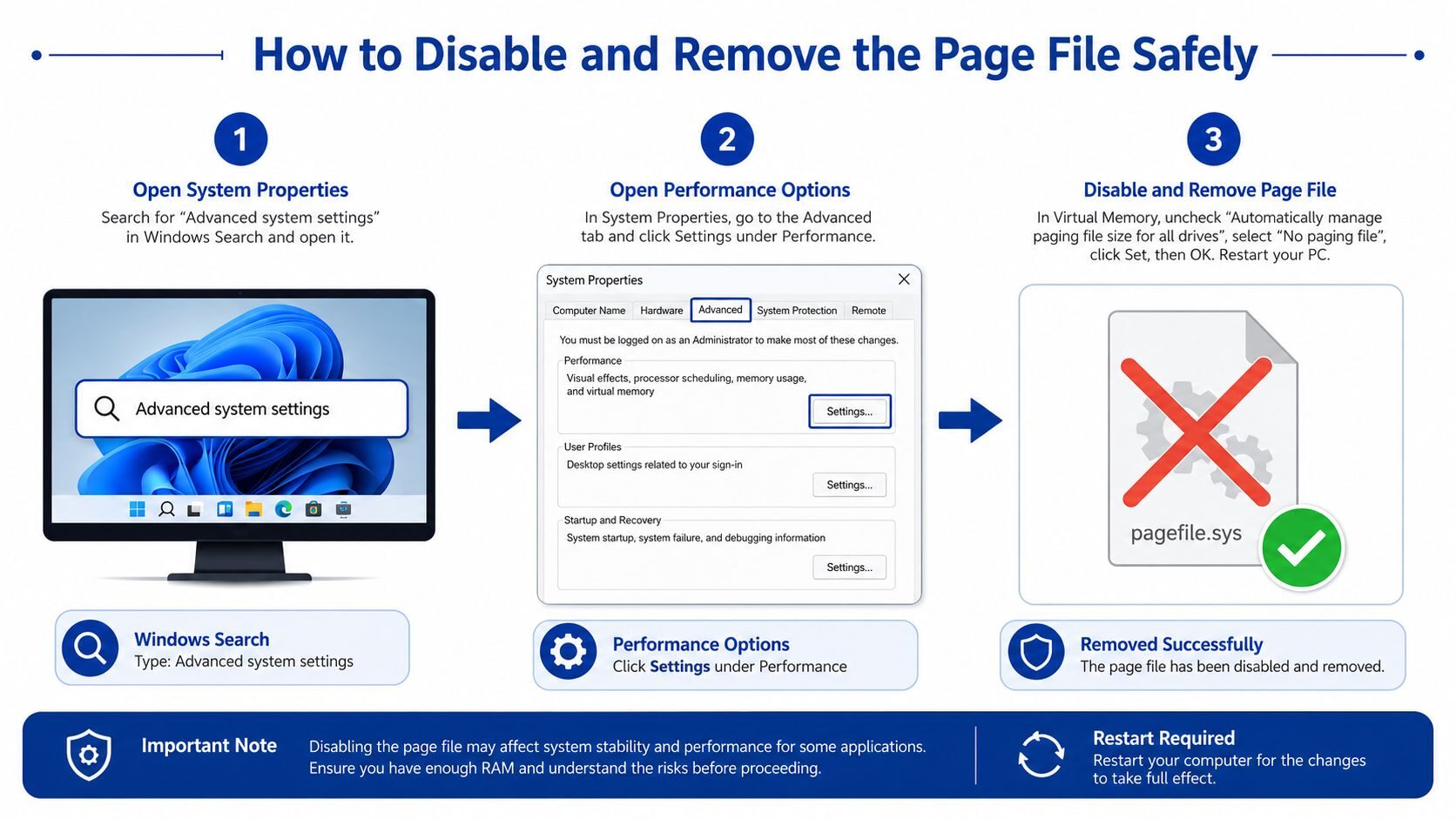
Inside Virtual Memory, clear Automatically manage paging file size for all drives. Review every listed drive. A multi-drive PC may have a paging file on more than one partition, so disabling it on the system drive alone may leave another instance active.
The setting change
Select a drive that uses a page file, choose No paging file, and click Set. Repeat the selection for each relevant drive. Confirm the warnings, then click OK through the open dialogs. Windows may tell you that the change won't take effect until the computer restarts, and that message is important.
The file is removed only after reboot because Windows can't release a file it is actively using during the current session. Microsoft community guidance and technical documentation describe this as a configuration change followed by a restart, not an immediate live-file deletion. If you want a visual walkthrough of Windows settings adjustments, this Windows 11 registration-tweak reference provides related interface context.
After restarting, check the root of the affected drive only if you need to verify the result. Protected operating-system files are hidden by default, and a missing visible file doesn't prove that every paging configuration is suitable for your workload. Test the applications you use, then restore automatic management if you encounter memory errors, failed launches, or unexplained instability.
Delete, Resize, or Relocate the Page File
Full deletion is only one option. In practice, a smaller custom file or a page file on another suitable drive often solves the immediate storage concern without discarding every benefit of virtual memory. The right choice depends on the workload, available space, drive layout, and crash-dump requirements.
| Configuration | Best For | Commit Limit Impact | Crash Dump Support |
| No paging file | Systems with tested, light workloads and a clear reason to remove it | Reduces the limit to usable RAM | May eliminate or limit full and kernel dump support |
| Custom fixed-size page file | Users who need predictable disk allocation and have measured memory demand | Adds only the configured capacity | Depends on size and dump requirements |
| Page file on a secondary drive | PCs with limited system-drive space or a suitable additional drive | Preserves paging capacity on the selected drive | Depends on location, size, and Windows dump settings |
| System-managed page file | Most general-purpose PCs and mixed workloads | Lets Windows adjust capacity for changing demand | Best general option for retaining diagnostic flexibility |
A 16 GB laptop used for office work may benefit more from retaining automatic management than from removing the file, because mobile systems often have less tolerance for sudden memory demand. A 32 GB gaming PC can be a good candidate for a measured custom configuration if testing shows that its games and background tools stay comfortably within available commit. A 64 GB workstation may rarely page during normal use, yet professional software, virtual machines, or debugging requirements can still justify keeping a managed file.
Microsoft's documented scenarios illustrate why fixed rules fail. Guidance can call for RAM divided by eight, a cap of 32 GB, three times RAM or 4 GB, or 150% of RAM, depending on the role and diagnostic requirements. These figures come from different Microsoft scenarios, not a universal desktop formula. Microsoft's documented page-file recommendations are useful precisely because they show how context changes the answer.
Before deleting data to recover space, use a dedicated cleanup workflow such as Nerds 2 You's junk-file removal guidance. For administrators investigating disk and system configuration across a machine, Sysinternals Suite tools can provide a broader diagnostic toolkit than removing a protected file.
Hidden Costs of Running Without a Page File
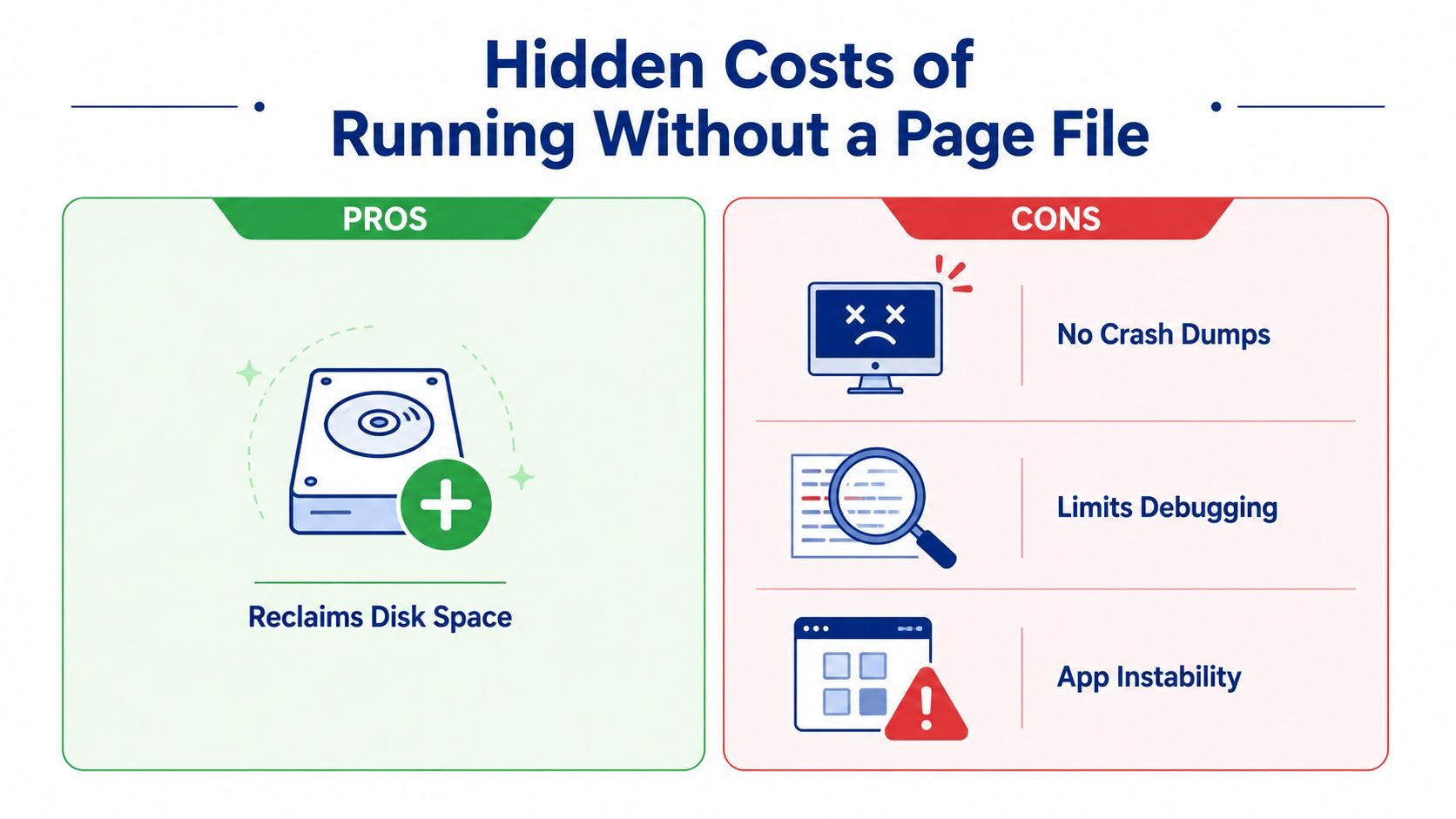
The most serious drawback isn't that Windows might feel slower. It's that failure evidence can disappear. Depending on the configured dump type and available backing storage, removing the page file can prevent Windows from writing full or kernel memory dumps after a blue screen. Without that dump, a technician may have less information about the driver, service, or memory state that triggered the failure.
That matters for a machine that seems stable today but occasionally crashes under a specific workload. A page file can support the operating system's ability to preserve memory information for later debugging. Microsoft community guidance also warns that removing it leaves Windows without a place to put memory data when RAM is full, increasing the chance of application or system crashes. Microsoft community discussion of pagefile.sys addresses this diagnostic and stability trade-off directly.
What can break first
Applications don't all respond to memory pressure in the same way. Some may refuse to start because they can't reserve the required commit. Others may start normally, then fail when a project, scene, dataset, or export pushes demand higher. Windows services can also behave poorly when the system reaches its reduced commit ceiling.
Watch for these practical symptoms after disabling the file:
- Launch failures: A memory-heavy application may reject startup even when Task Manager doesn't show every byte of RAM in use.
- Unexpected crashes: Programs can terminate when they request more committed memory than Windows can back.
- Lost diagnostics: A later BSOD may produce a smaller dump or no useful dump, limiting root-cause analysis.
- Pressure-sensitive slowdowns: Removing paging doesn't eliminate memory pressure. It can make the failure mode more abrupt.
The SSD argument is weaker than it sounds. The supplied technical guidance notes that modern SSD endurance is generally high enough that page-file writes are rarely the dominant wear factor. The larger practical risk is performance regression or workload incompatibility when the system needs committed memory. If storage is the concern, moving the file to another drive, reducing other disk usage, or using automatic management is usually a more balanced response than deleting the safety margin outright.
A Practical Default Configuration for Most PCs
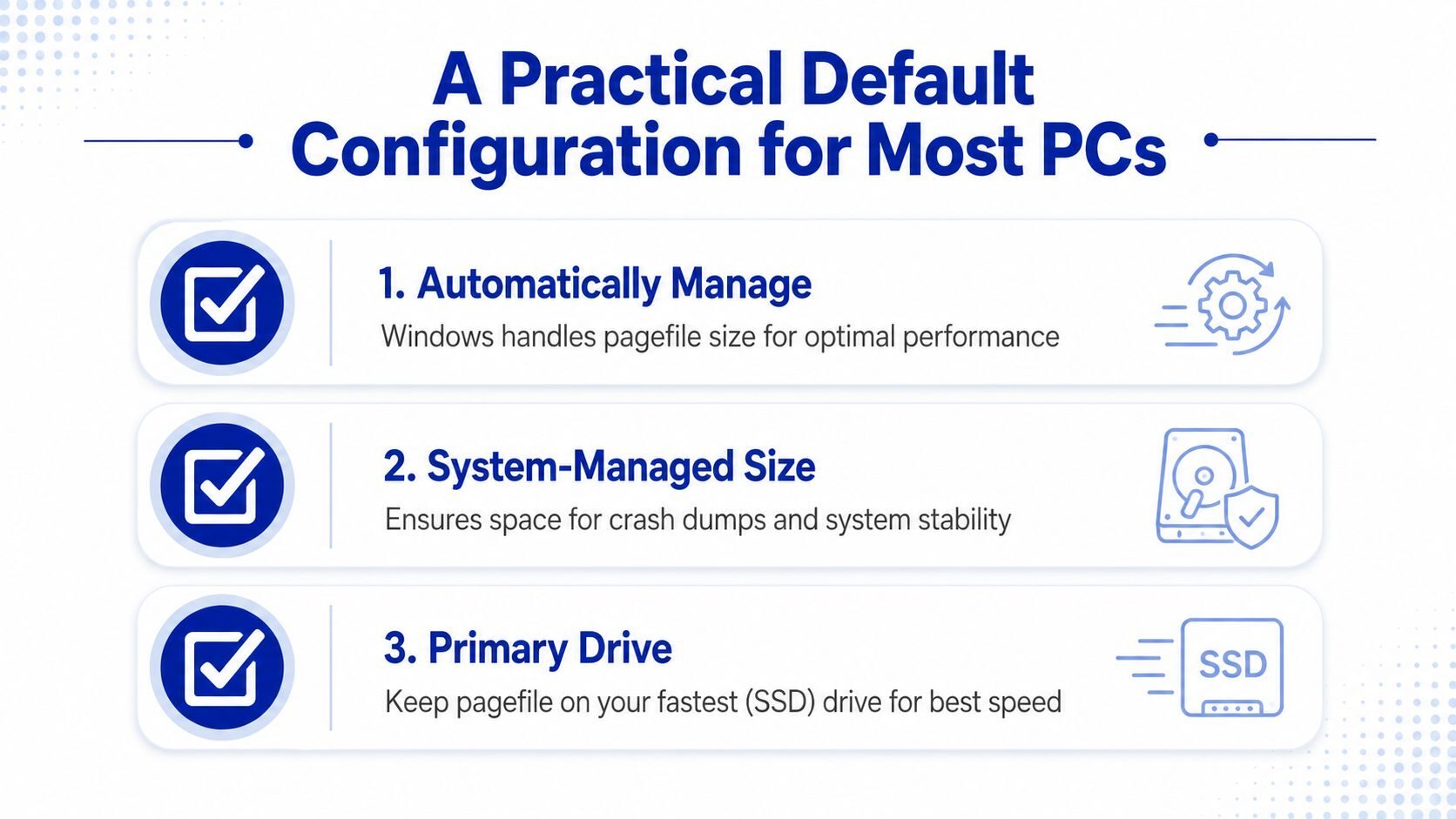
For most Windows desktops and laptops, automatic page-file management is the sensible starting point. It keeps Windows responsible for adapting the file to changing workloads and preserves more flexibility for crash-dump handling. You can still investigate unusually large files, but size alone doesn't prove that the configuration is wasteful.
A small fixed file can make sense when you've measured the workload, understand the dump requirement, and need predictable allocation. Relocation can help when the operating-system drive is constrained and another fast, reliable drive is available. Full deletion belongs in the narrowest category, after testing the applications, services, and diagnostic behavior that matter to you.
Use this quick verification list after changing the setting:
- Confirm the intended drives: Check that every drive has the configuration you meant to apply.
- Reboot fully: Windows won't release the active file until restart.
- Test real workloads: Open the applications and projects that normally push your system hardest.
- Review dump needs: Make sure the selected crash-dump configuration still has suitable backing storage.
- Restore automatically managed sizing: If errors, launch failures, or crashes appear, return to Windows-managed paging.
The cleanest-looking configuration isn't always the healthiest one. Keeping a managed page file usually costs some disk space, but it maintains a buffer for memory pressure and gives troubleshooting a better chance after a system failure.
NeoTeo publishes practical tutorials and hardware-focused explainers that help you make informed Windows and PC-building decisions. Visit NeoTeo for more guides on system configuration, troubleshooting, software, and technology.


