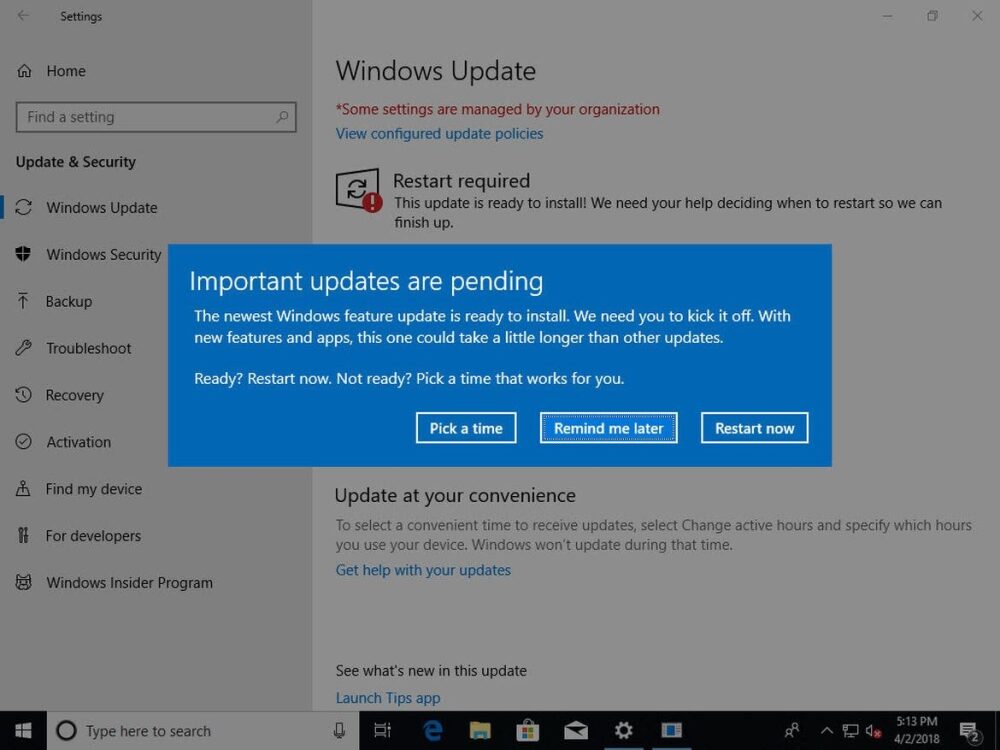
The automatic and mandatory updates of Windows 10 represent one of the most controversial aspects of Microsoft's flagship operating system. In its advanced versions, administrators have the resources to closely control the installation of updates, while the average user can only schedule a delay, or configure a window of active hours without interruptions. The alternative is… to avoid updates altogether, and for that there is a new dedicated application.
A Necessary Warning
Now, I would like to make something clear before continuing: It is not recommended to disable updates in Windows 10. Despite the fact that every major update terrifies me (because Microsoft breaks its toys), from the testimonials on the Web that share that feeling (some users put the process on par with a Lovecraft story), from missing Service Packs too much, and from my complete rejection of the concept of "Windows as a service", I do not recommend interruption for security and compatibility reasons. On one hand, malware never sleeps, and on the other, some recent components only have support in the latest builds of Windows 10. At the same time, I also understand that each user has specific needs that more than once clash with Redmond's update scheme, and the most practical solution comes down to avoiding updates. If you are one of those users in need, keep reading.
StopUpdates10: The Practical Solution
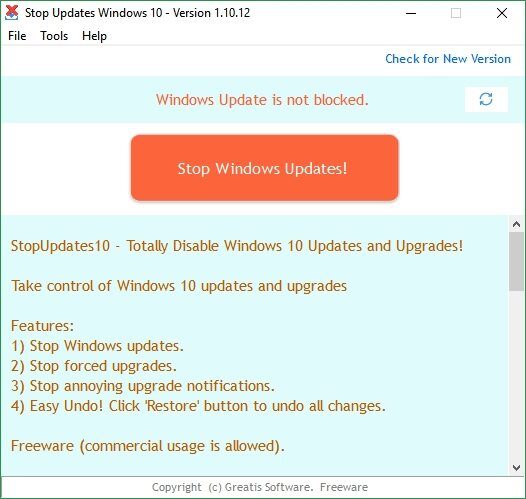
The plan is to download a copy of the program StopUpdates10, developed by Greatis Software. On the official page there is a portable edition that does not require installation, and all its elements take up less than four megabytes. We open StopUpdates10 with administrator privileges, and press the Stop Windows Updates! button. The program will take care of stopping the services and blocking associated notifications. Another positive aspect is that the changes can be undone easily, so StopUpdates10 behaves like a kind of general switch.
Manual Workarounds
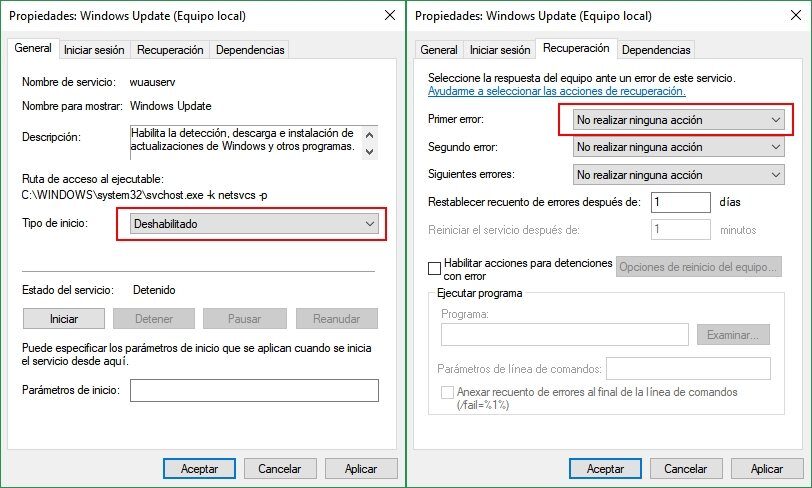
I imagine some of our readers will ask about the Windows Update service. The problem is that reports of the automatic reactivation of that service have multiplied. If for any reason you do not want to use StopUpdates10 and prefer to try cutting the service manually, then go to Control Panel -> Administrative Tools -> Services, look for the Windows Update entry, change its startup type to Disabled, and in the Recovery tab modify the value of the First Failure field to Take No Action. Other guides also recommend going to the Task Scheduler, going to the UpdateOrchestrator folder inside Microsoft -> Windows, and disabling the entries there. I imagine one of these options will work for you... at least until Microsoft changes everything again.