
You copy a 12 GB video to a USB stick at work, plug it into the conference-room television, and get nothing. The same drive works on your Windows laptop, then disappears again when you connect it to the car stereo. The hardware hasn't changed. The file system has.
That's why formatting a USB drive to NTFS isn't merely a matter of selecting a menu option. NTFS is a strong choice for Windows-focused storage, particularly when you need Windows permissions, journaling, or files larger than FAT32 allows. But a USB drive often travels between computers, televisions, consoles, cameras, and vehicle systems. The right format depends on that journey.
Why the File System on Your USB Drive Matters
Windows reads and writes NTFS natively, so the drive in the opening example behaves normally on a Windows computer. A television or car head unit may not support NTFS at all, while macOS commonly provides read access without built-in write support. The result can be a volume that appears healthy on one device and invisible on another.
The format also controls what files the drive can hold. FAT32 can't store a single file larger than 4 GB, which makes it unsuitable for many disk images and high-resolution recordings. NTFS and exFAT handle files beyond that boundary, but they make different compromises around metadata, journaling, security features, and device compatibility.
Practical rule: Choose the file system for the devices that must use the drive, not for the computer doing the formatting.
NTFS has a long Windows history. Microsoft introduced it on July 27, 1993, with Windows NT 3.1, and later NTFS evolution added capabilities such as disk quotas, Encrypting File System support, sparse files, reparse points, and USN journaling, as documented in the NTFS historical overview. Those features help explain why NTFS became the default for higher-trust Windows storage workflows.
The drive's destination matters more than its size
A USB stick used only with Windows desktops can benefit from NTFS's mature permissions and journaling model. A drive used to move video between Windows and macOS needs a different evaluation, and one connected to a smart TV or car stereo needs a model-specific compatibility check.
Microsoft documents NTFS support for volumes up to 8 PB on Windows Server 2019 and later, and up to 256 TB on earlier Windows versions, with the actual limit determined by cluster size and the number of clusters in the volume, according to Microsoft's NTFS overview and capacity documentation. Those ceilings are far beyond typical consumer USB flash drives, so capacity alone rarely justifies NTFS. Compatibility usually decides the outcome.
Formatting a USB Drive to NTFS in Windows
Back up anything you need first. Formatting erases the selected volume, and DiskPart can erase the wrong physical disk if you select it carelessly.
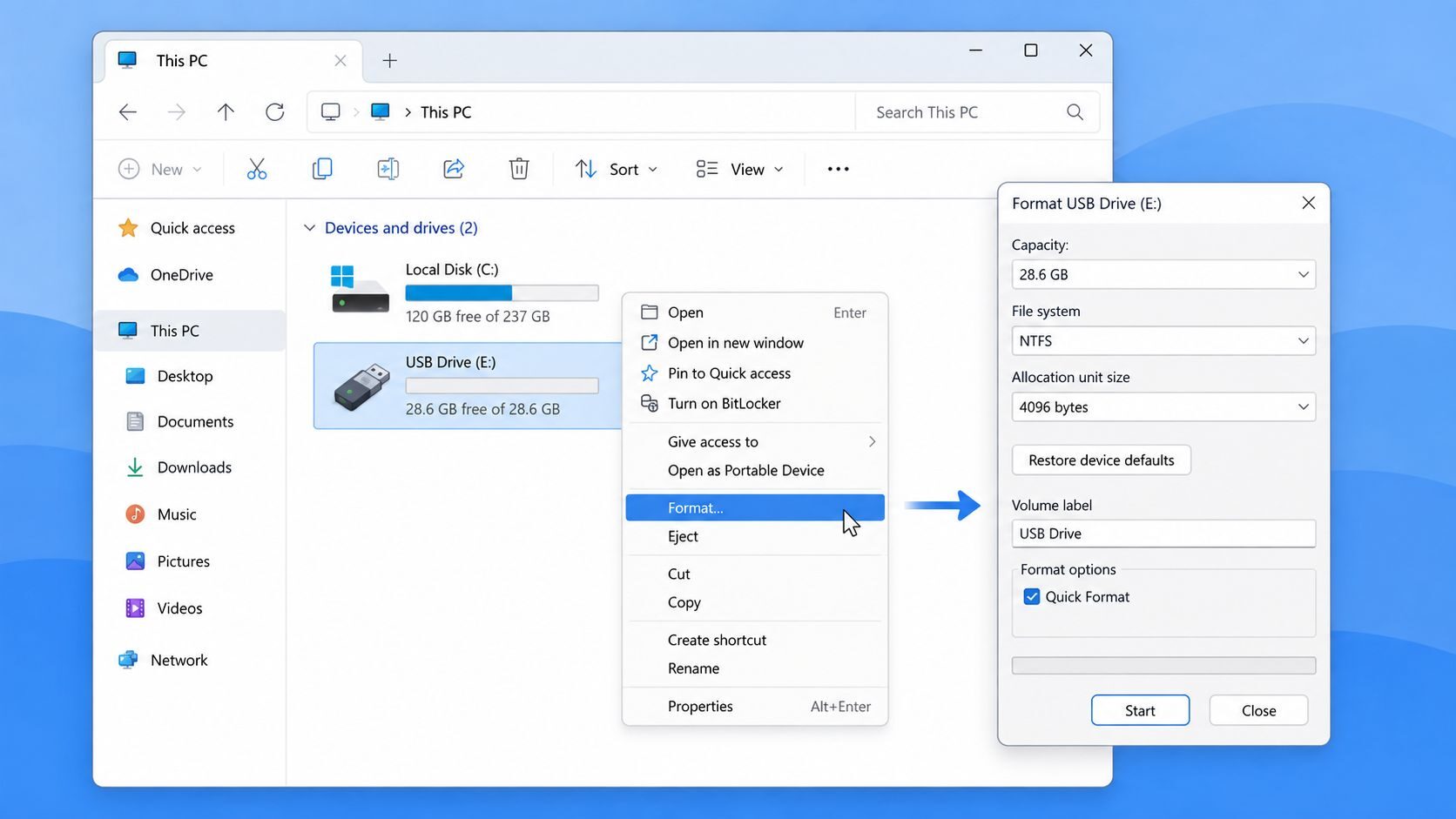
For a normal, healthy USB volume, File Explorer is the least complicated route:
- Open This PC and right-click the USB drive.
- Select Format.
- Choose NTFS as the file system.
- Leave Quick Format selected for a normal reformat.
- Give the volume a clear label and confirm the warning.
If File Explorer doesn't show a usable volume, open Disk Management with diskmgmt.msc. Identify the USB by its capacity and connection status, then delete or create partitions only after confirming that it isn't another disk. An unallocated device can receive a new simple volume through the wizard, followed by NTFS formatting.
The recovery route for stubborn drives
DiskPart is useful when the graphical tools fail or a previous partition layout confuses Windows. Open a Command Prompt with administrative privileges and work through the following sequence:
- diskpart
- list disk
- select disk N
- clean
- create partition primary
- format fs=ntfs quick
- assign
Replace N with the correct disk number. Check the size column twice. The clean command removes the partition information from the selected disk, so a mistaken selection can destroy the wrong device immediately.
For additional Windows troubleshooting, Hasleo WinToUSB can help create Windows installation USB drives, although creating installation media and formatting a general-purpose storage stick aren't the same task.
Before formatting removable flash media, Microsoft community guidance recommends changing the drive policy in Device Manager. Open the drive's properties, select the Policies tab, and change Optimize for quick removal to Optimize for performance before formatting. This setting is relevant because write caching can leave pending data when someone pulls the drive during an operation, as discussed in Microsoft's NTFS formatting guidance for USB devices.
Windows may format the drive successfully without that change, but the operational habit still matters. Use Safely Remove Hardware before disconnecting the device, especially after copying large files or many small files.
Formatting NTFS on macOS and Linux
macOS and Linux can work with NTFS, but neither platform offers the same first-class experience as Windows. That distinction matters if the USB drive will be edited regularly outside Microsoft's operating system.
On macOS, the system can generally read NTFS volumes, but Finder and Disk Utility don't provide built-in NTFS writing. A dedicated product such as Paragon NTFS for Mac or Tuxera NTFS for Mac can add write support and expose NTFS operations through the system. These are third-party drivers, not native Apple functionality, so unmounting the drive properly remains important.
Linux offers a more transparent path. Many distributions can read NTFS, while writable access commonly relies on ntfs-3g through FUSE. After installing the package supplied by the distribution, a command-line format can look like this:
sudo mkfs.ntfs /dev/sdX1
Replace /dev/sdX1 with the verified USB partition. Using the wrong device path can destroy another disk, so confirm it with the distribution's disk utility or lsblk before running the command. Users who prefer a graphical interface can use GParted, select the correct partition, and choose NTFS from the format menu.
| Operating system | Read | Write native | Write third-party |
| Windows | Yes | Yes | Not normally needed |
| macOS | Generally yes | No | Paragon NTFS or Tuxera NTFS |
| Linux | Commonly yes | Distribution-dependent | ntfs-3g through FUSE |
The practical conclusion is simple. A USB formatted as NTFS can function on macOS or Linux with the right tools, but those tools add another layer between the operating system and the file system. Treat the drive as Windows-first, unmount it cleanly, and test permissions before making it the only copy of important data.
NTFS Compared to exFAT and FAT32
NTFS is appropriate when the drive will spend most of its life attached to Windows computers. Its journaling and permission features make it more suitable for managed Windows storage than a simple interchange format. NTFS also avoids FAT32's single-file ceiling, which matters for large archives and disk images.
exFAT is usually the practical middle ground for removable media that moves between operating systems. It supports large files without FAT32's 4 GB single-file restriction, while current computers commonly provide read and write support. It doesn't offer the same NTFS feature set, but that may be an advantage when portability matters more than Windows security metadata.
FAT32 remains useful for older equipment. Televisions, cameras, printers, embedded systems, and game hardware may recognize FAT32 when they reject newer formats. Its limitations are substantial, including the 4 GB maximum individual file size and a 2 TB Windows volume limit, as outlined in Microsoft-oriented formatting guidance and the FAT32 formatting guide from NeoTeo.
| File system | Maximum file size | Best use | Key tradeoff |
| NTFS | Determined by Windows version, cluster size, and volume structure | Windows-centric storage, permissions, journaling | Weaker removable-device compatibility |
| exFAT | Supports files beyond FAT32's 4 GB ceiling | Cross-platform computer and media exchange | Fewer NTFS-specific features |
| FAT32 | 4 GB per file | Legacy electronics and embedded devices | Large-file restriction and older design |
A 6 GB video archive won't fit on FAT32 as a single file. exFAT can handle it, while NTFS makes more sense if the drive stays within Windows and needs NTFS behavior. Don't pick a format from the file-size column alone. Consider where the drive will be plugged in, whether permissions matter, and whether recovery after an interrupted write is important.
Cluster Size and Allocation Unit Choices
A cluster, or allocation unit, is the smallest block of space NTFS assigns to a file. Microsoft generally recommends a 4 KB cluster size for standard NTFS volumes. Smaller allocations limit wasted space when the drive contains many small files. Microsoft's documented figures show larger clusters increasing the supported volume ceiling, from 16 TB with 4 KB clusters to 32 TB with 8 KB, 64 TB with 16 KB, 128 TB with 32 KB, and 256 TB with 64 KB on earlier Windows releases. See the Microsoft NTFS cluster-size documentation for the documented configurations.
Newer Windows documentation extends NTFS allocation-unit guidance to larger sizes and describes volumes reaching 8 PB under relevant configurations. Those limits rarely affect a USB purchase. A typical flash drive remains far below them, so the practical choice is how efficiently it stores your files, not how large a theoretical volume it can support.
Why the default usually wins
A 1 KB document on a volume using 64 KB clusters still occupies one complete allocation unit. Most of that space remains unused. The waste becomes noticeable on drives holding source trees, documents, configuration files, or other mixed content.
Larger clusters can reduce allocation overhead for a workload consisting mostly of very large sequential files. The improvement is usually too small to justify lost space and added uncertainty on a general-purpose USB drive.
| Allocation size | Best suited to | Main consideration |
| 4 KB | Mixed files, documents, source trees | Safe general-purpose default |
| 8 KB to 32 KB | Workloads with larger files and fewer small items | Small files consume more slack space |
| 64 KB and above | Specialized large-volume layouts | Higher capacity ceilings and more wasted space |
Leave Allocation unit size set to Default unless testing shows a clear workload-specific benefit. Microsoft's command examples use /A:4096, which supports 4 KB as the standard NTFS baseline. A high-capacity USB drive does not, by itself, justify a larger cluster size.
Device Compatibility Across TVs Consoles and Cars
Windows accepting an NTFS volume doesn't mean a television, console, or vehicle will recognize it. Consumer devices often implement only a limited selection of file systems, and their documentation may impose additional restrictions on partition layout, drive capacity, or supported media formats.
A smart TV might read FAT32 or exFAT but ignore NTFS. A car stereo may recognize the USB device but skip files it can't index. Cameras and dash cameras can be stricter still, because some expect the file system and partition structure created by the device itself.
| Device class | Commonly supported | Usual risk |
| Smart TVs and media players | FAT32, exFAT, sometimes NTFS | NTFS volume is invisible or media files aren't indexed |
| Game consoles | Model-specific, often FAT32 or exFAT | Console may require its own formatting process |
| Car stereos | FAT32, sometimes exFAT | Capacity, partition, or file-format restrictions |
| Cameras and recorders | Device-specific FAT variants or exFAT | Wrong format can prevent recording or recognition |
| Routers and printers | Model-specific removable-storage support | USB is detected but the volume isn't mounted |
Older hardware may advertise FAT32 support while imposing its own capacity or file-size boundaries. Newer consoles aren't uniformly interchangeable either, and some require the console to format external storage before use.
Before formatting, search the exact model number with USB file system or external storage. Check the manufacturer's maximum supported capacity, partition requirements, and media format rules. If one drive must move between Windows, macOS, a television, and a car, exFAT is often the least-bad compromise. If the drive is Windows-only, NTFS remains the safer fit. If a legacy device rejects both, FAT32 may be unavoidable.
Final Checklist and Common Pitfalls
The decision can be reduced to the workload:
- Windows-only storage: Choose NTFS when permissions, journaling, or large files matter.
- Mixed computer environments: Choose exFAT when the drive must be writable across systems.
- Legacy electronics: Choose FAT32 when the device documentation requires it.
- Uncertain device support: Check the exact model before erasing the drive.
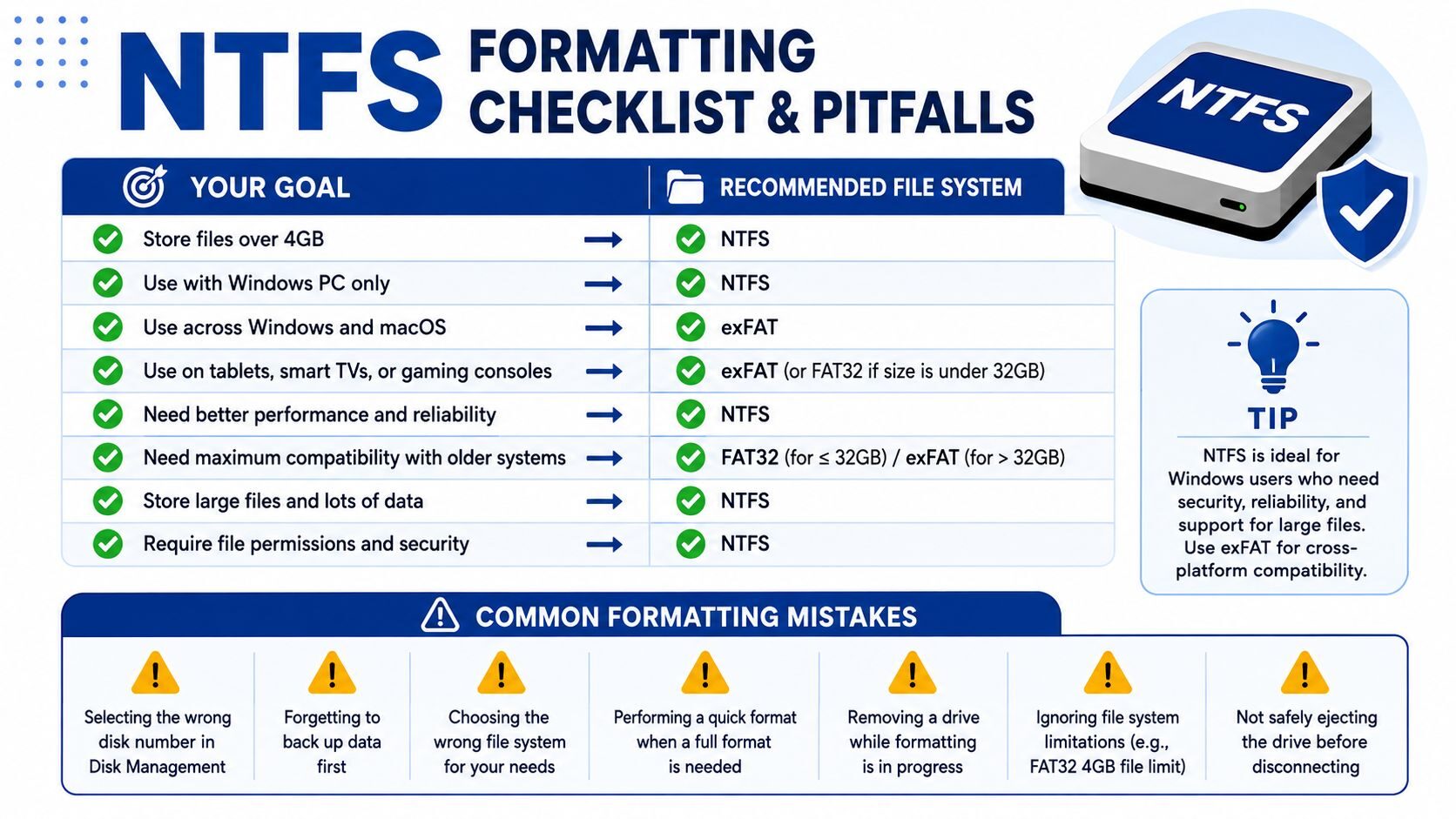
Formatting failures usually come from operational mistakes, not from NTFS itself. Verify the physical disk before using DiskPart, create a backup before changing partitions, and don't format a multi-partition USB volume without confirming which partition contains the data. If the drive behaves strangely afterward, investigate write-cache settings and the device's health instead of repeatedly reformatting it.
Use Windows fsutil fsinfo volumeinfo X: to inspect the active file system. On Linux, mount can show mounted file systems, while macOS users can run diskutil info /Volumes/VolumeName to review the volume details. For recovery guidance after an accidental format, Monro Cloud's advice on recovering data from a formatted SD card is a useful reference, though recovery should begin before writing new data to the affected device.
If Windows reports USB errors during the process, the NeoTeo guide to fixing USB errors in Windows provides another troubleshooting path. The final decision is straightforward: if the drive stays primarily in Windows and carries files over 4 GB, NTFS is a sensible choice. If it leaves Windows, stop before formatting and verify compatibility first.
NeoTeo publishes practical technology guides, troubleshooting walkthroughs, and hardware coverage for readers who want to make informed choices before changing a device. Visit NeoTeo for more hands-on help with storage, Windows, removable media, and the wider technology ecosystem.


