
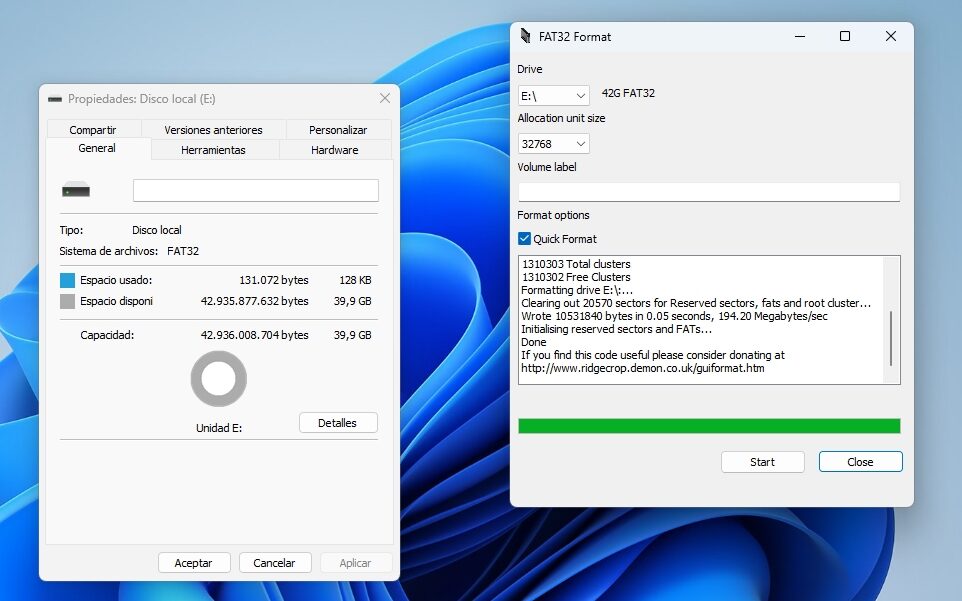
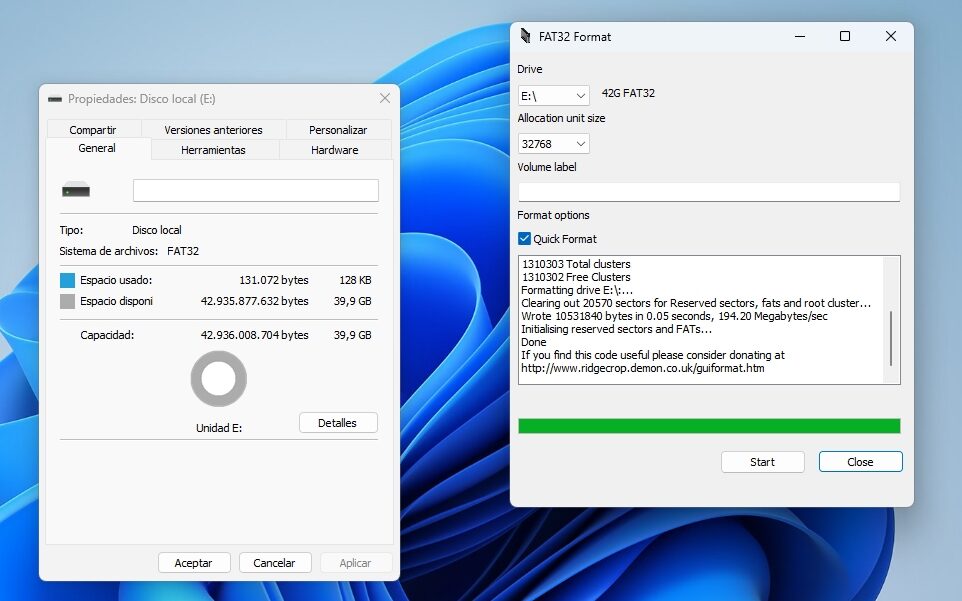
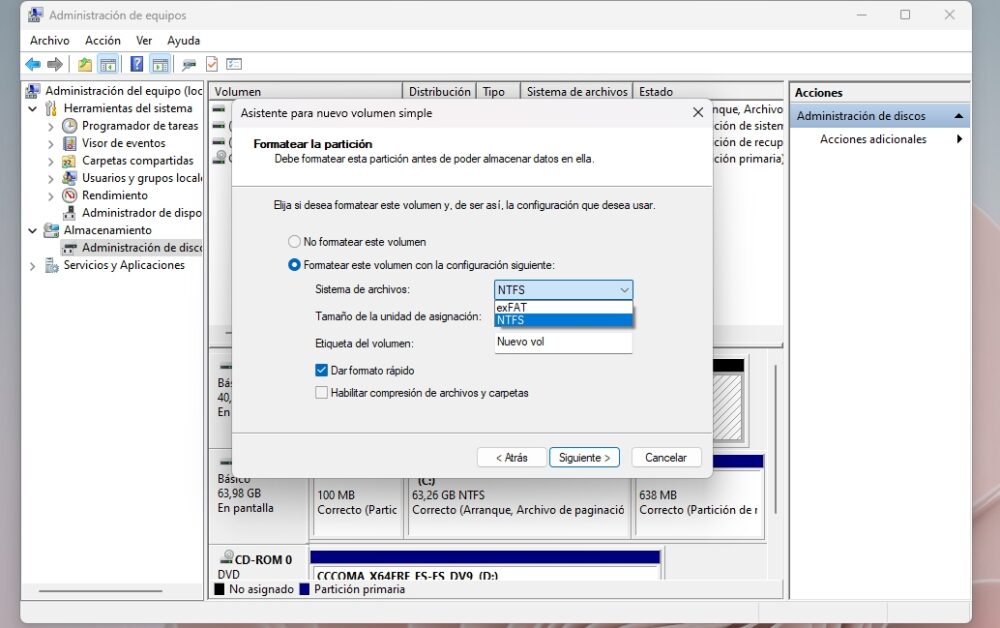
If you try to format a drive larger than 32 gigabytes using the FAT32 file system, Windows will not allow it. For many years we thought it was an impossible technical limitation, but later we discovered that the 32-gigabyte ceiling was completely arbitrary. If, for compatibility reasons, you need to format a large drive as FAT32, this small program called FAT32 Format will help you.
The FAT32 file system has a very interesting history, especially when we get to its famous 32-gigabyte limit in Windows. Microsoft engineer Dave Plummer (now retired) was aiming to develop a port of the shell of Windows 95 for Windows NT 4.0. Part of that work included rebuilding the format system, as well as defining the available sizes for clusters or allocation units.
FAT32 has a maximum number of clusters per volume. If we increase the cluster size, the volume size also grows, but the problem is that we waste a lot of space. Such waste was unacceptable in 1996, so Plummer set a maximum limit for FAT32 in Windows: He took the largest memory module at his disposal (16 megabytes, crazy at that time), multiplied it by a thousand, and then doubled it again, more than enough for the lifetime of NT 4.0. 32 gigabytes… and that limit never went away.
How to Format Drives Larger Than 32 Gigabytes in FAT32
To format drives larger than 32 gigabytes in FAT32, we have multiple resources at our disposal, ranging from PowerShell commands to using GParted, but today we're going to recommend something even simpler: The software FAT32 Format by Ridgecrop Consultants. Make sure to choose the correct drive letter (be very careful here, because it detects internal drives), select the cluster size, assign a volume label and/or enable quick format mode (if you wish), and click Start. The program will present a final warning, and then proceed with the format.
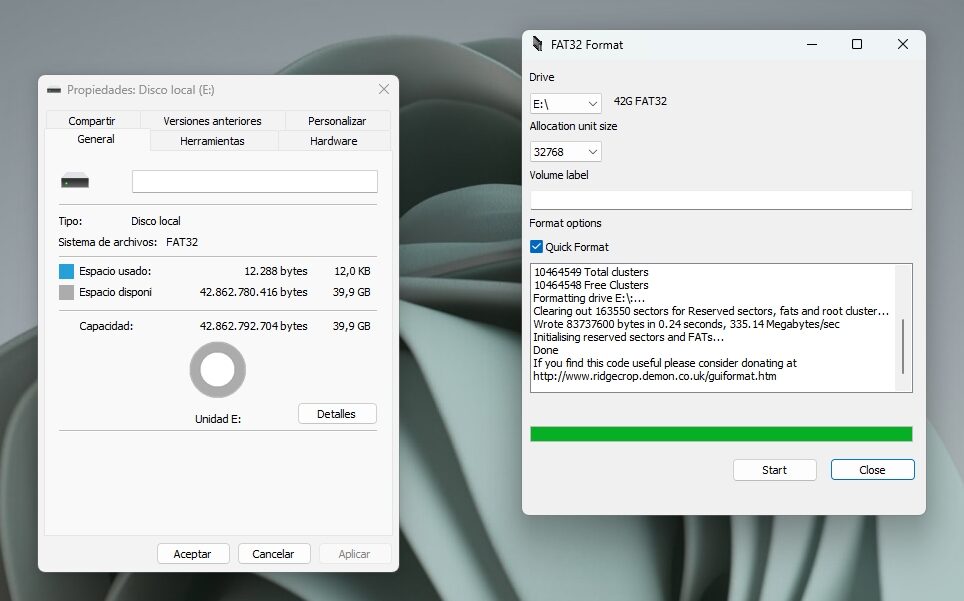
To verify that the drive has been formatted correctly in FAT32, go to "This PC" and enter the drive's properties. The file system will appear there. FAT32 Format requires that the drive have a letter; if it doesn't, you'll need to initialize it first with Disk Management. The maximum volume size supported by FAT32 Format is 2 terabytes.
Why would anyone use FAT32 on large drives? One reason: Its compatibility. I've seen cameras, mobile phones, and even "smart" TVs that can only read files when the drive is formatted in FAT32. Do you want to update a BIOS or UEFI from DOS? Your only options are FAT16 or FAT32. If you need to share files on a USB stick and don't know the computer or operating system that will read it, using FAT32 will eliminate any conflict at the root. Regardless of its "hard" limits (e.g., you can't create files larger than 4 GB), FAT32 remains very useful, and with the help of FAT32 Format, using this file system stops being a headache.
Official site and download: Click here


